Microsoft is rolling out Windows 11 26H2 as the next annual feature update. If you want a clean installation or need to build a bootable USB drive, getting the official ISO file is the first step. Here is exactly how to download the Windows 11 26H2 ISO safely, verify it, and use it.
What Is Windows 11 26H2?
Windows 11 26H2 is the 2026 annual feature update. It shares the same platform as 25H2, which means under the hood it is nearly identical. The main difference is the support lifecycle: 26H2 extends security updates for Home and Pro editions until late 2028, and for Enterprise and Education until late 2029.
Microsoft delivers this update as a small enablement package for devices already running 24H2 or 25H2. But if you are building a new PC, reinstalling Windows, or skipping versions, you need the full ISO file.
What's New in 26H2
- Under the hood, 26H2 adds a Low Latency Profile that
- reduces input lag — useful if you play competitive games.
- The taskbar also stops glitching when you hot-swap monitors,
- and the Start menu animations finally feel smooth instead
- of stuttery. None of this is revolutionary, but it is the
- kind of polish that makes daily use less annoying.
Should You Download the ISO Now?
As of mid-2026, the official public ISO is not yet on Microsoft's consumer download page. The stable release available there is still 25H2. You have two realistic paths to get a 26H2 ISO today:
| Method | Best For | Difficulty | File Size |
|---|---|---|---|
| Windows Insider ISO | Early testers, tech enthusiasts | Easy | ~5.4 GB |
| UUP Dump | Anyone who wants the latest build now | Medium | ~5.4 GB |
Both methods pull files directly from Microsoft servers. There is no third-party modification involved.
System Requirements
Nothing changed here. The baseline stays the same as 24H2 and 25H2:
- 1 GHz or faster 64-bit dual-core processor
- 4 GB RAM minimum
- 64 GB storage minimum
- TPM 2.0 chip
- Secure Boot capable firmware
If you are unsure whether your PC qualifies, check our system requirements guide for a quick test.
Where to Download the Windows 11 26H2 ISO
Option 1: Windows Insider Preview ISO (Official)
Microsoft publishes Insider Preview ISOs on the Windows Insider Preview Downloads page. To use this:
- Sign in with a Microsoft account enrolled in the Windows Insider Program.
- Select the Experimental channel (this is where 26H2 builds live).
- Pick your language and architecture (x64 for most PCs, arm64 for Snapdragon devices).
- Click download and save the ISO.
The file is an official Microsoft build. You can verify the SHA256 hash on the download page against the file you receive. The ISO is approximately 5.4 GB for the 64-bit edition.
.webp "Windows 11 26H2 Insider Preview ISO — official Microsoft build")
Option 2: UUP Dump (Build Your Own ISO)
If you want a specific 26H2 build number or the Insider page does not list it yet, UUP Dump is the cleanest community tool available. It downloads update files straight from Microsoft and assembles them into an ISO on your machine.
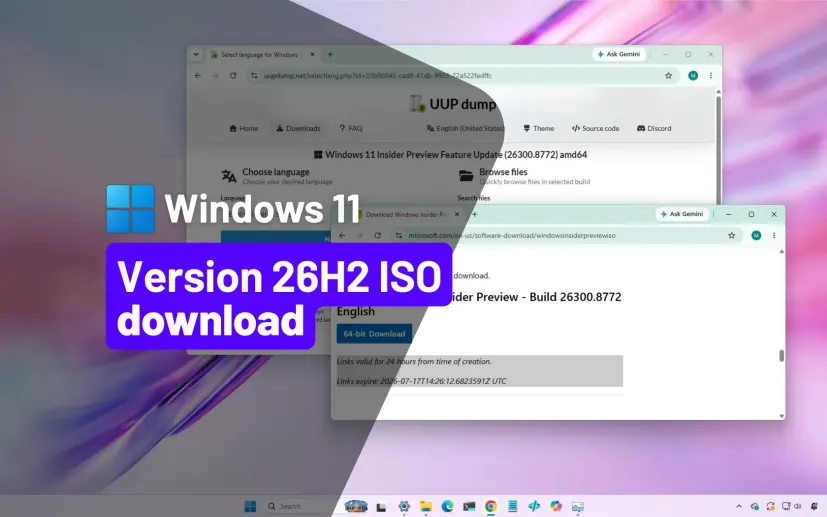
- Go to uupdump.net and search for the latest
26300.xxxxbuild. - Select Windows 11, version 26H2 and your architecture.
- Choose your language and the editions to include (Home, Pro, etc.).
- Check Include updates and click Create download package.
- Extract the ZIP, right-click
uup_download_windows.cmd, and run it as administrator. - Press
Rthen Enter when prompted. The script downloads and builds the ISO automatically.
Option 3: Wait for the Public Release
If you are not in a rush, the simplest route is patience. Once 26H2 hits general availability, Microsoft will post the ISO on the official Windows 11 download page. You can use the Media Creation Tool or download the ISO directly.
Create a Bootable USB Drive
Once you have the ISO, you need bootable media. Rufus is the fastest tool for this.
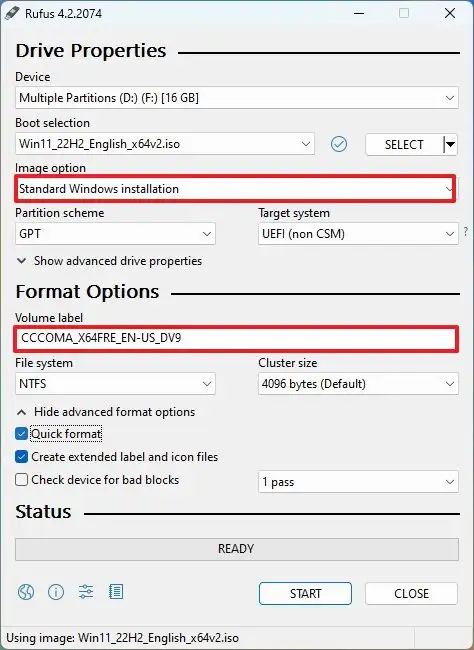
- Plug in a USB drive with at least 8 GB of space.
- Open Rufus, select your USB drive under Device.
- Click Select and browse to your 26H2 ISO file.
- Set Partition scheme to GPT and Target system to UEFI (non-CSM).
- Click Start. If your PC lacks TPM 2.0 or Secure Boot, Rufus can remove those checks in the dialog that appears.
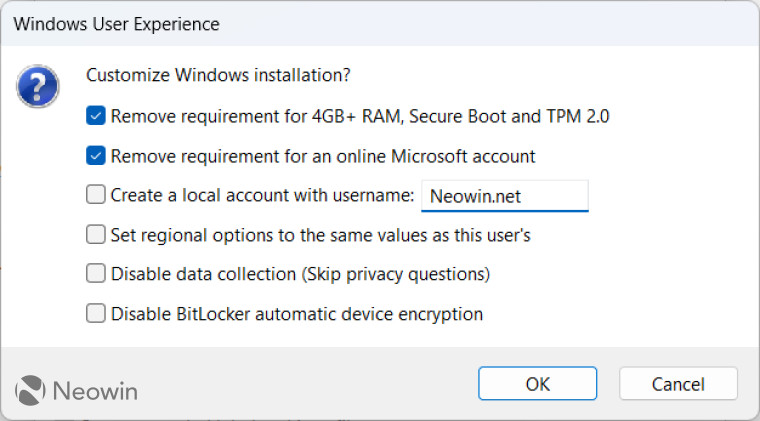
After a few minutes, your bootable USB is ready. You can now use it for a clean install or an in-place upgrade.
How to Install From the ISO
Clean Install
Boot from the USB drive. You may need to change the boot order in your UEFI firmware settings. Follow the on-screen prompts, choose Custom installation, and select the drive where you want Windows installed. This wipes the drive, so back up your data first.
In-Place Upgrade
If you want to keep your files and apps, mount the ISO in File Explorer by double-clicking it. Open the virtual drive and run setup.exe. Choose Keep personal files and apps when the option appears. This takes longer than the enablement package route through Windows Update, but it works if you are jumping from an older version like 23H2 or 22H2.
Frequently Asked Questions
Windows is a trademark of Microsoft Corporation. This guide is independent and not affiliated with Microsoft. All product names, logos, and brands are property of their respective owners.
No comments:
Post a Comment